




Few things are as frustrating as an app crashing right when you need it the most. Whether you are chatting with friends, making an online payment, watching a video, or working on something important, sudden app crashes can interrupt your flow and waste your time.
App crashes are a common issue for smartphone users across the world, especially on devices that handle multiple apps daily. In many cases, the problem is not as serious as it seems. Most crashes are caused by simple issues like outdated software, overloaded memory, or minor glitches that can be fixed in minutes.
In this comprehensive guide, you will learn six powerful tricks to fix common app crashes. Each solution is explained in detail so you understand not just what to do, but why it works.
1. Restart Your Phone to Clear Temporary Glitches
Why Apps Crash Because of System Glitches
Your smartphone runs many processes at the same time. Even when you are not actively using certain apps, they may still be running in the background. Over time, these processes can create temporary glitches that affect how apps function.
Get TikTok SEO Cheat here
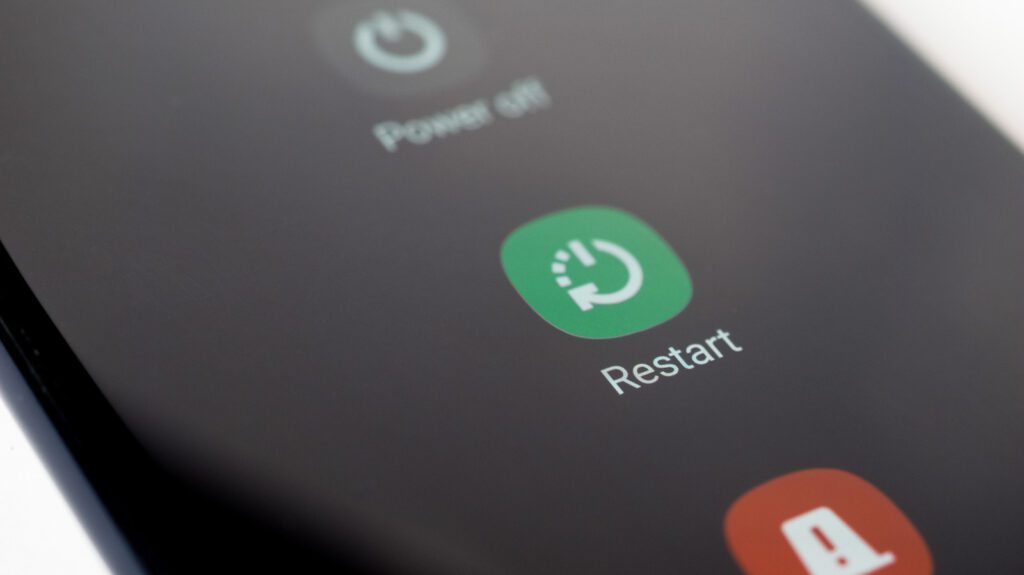
When your system memory becomes overloaded or unstable, apps may start to freeze, lag, or close unexpectedly. This is one of the most common reasons behind sudden crashes.
Restarting your phone helps reset all active processes. It clears temporary memory and allows your system to start fresh, which often resolves minor software issues immediately.
How to Fix It
- Press and hold your power button
- Select the restart option
- Wait for your phone to reboot completely
- Open the app again to check if the issue is resolved
2. Clear App Cache to Remove Corrupted Data
Why Cache Can Cause App Crashes
Apps store temporary data known as cache to improve speed and performance. This data includes images, scripts, and frequently used files that help apps load faster.

However, when cache files become corrupted or outdated, they can interfere with the app’s normal operation. Instead of helping performance, they begin to cause errors, including crashes.
Clearing the cache removes these problematic files without deleting your personal data. This allows the app to rebuild fresh and stable cache files.
How to Fix It
- Go to your phone settings
- Open the apps or application manager section
- Select the app that is crashing
- Tap on storage
- Choose clear cache
- Restart the app
Read More On:
- How to Create a PayPal Account That Receives Money in Any Country
- How to Use WhatsApp Business to Scale Your Sales
3. Update the App to Fix Bugs and Compatibility Issues
Why Outdated Apps Crash
Developers regularly update apps to fix bugs, improve performance, and ensure compatibility with new operating system versions. If you are using an outdated version of an app, it may not function properly on your device.

This is especially common after a system update. An older version of an app may struggle to work with new system features, leading to frequent crashes.
Updating the app ensures that you are using the latest version with all necessary fixes and improvements.
How to Fix It
- Open your app store
- Search for the app
- Check if an update is available
- Install the latest version
- Restart the app after updating
4. Free Up Storage Space to Improve Performance
Why Low Storage Leads to App Crashes
Every app needs a certain amount of storage space to function properly. When your device storage is almost full, apps may struggle to load data, save files, or run smoothly.
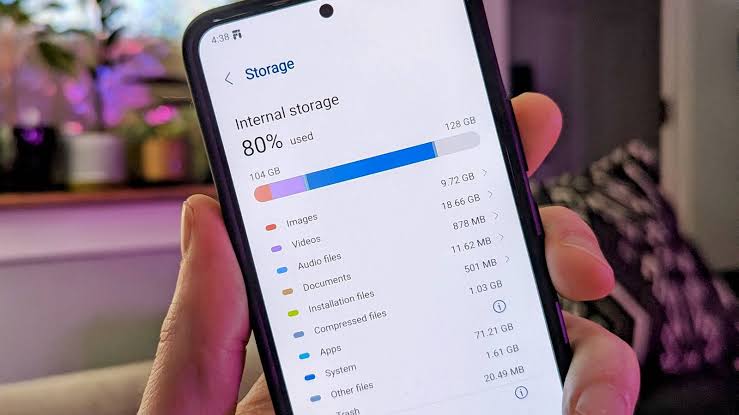
Low storage can also affect your phone’s overall performance, causing delays and instability that lead to crashes.
By freeing up space, you give your apps the resources they need to run efficiently.
How to Fix It
- Delete unused apps
- Remove duplicate photos and videos
- Clear large files from your storage
- Empty your downloads folder
- Use cloud storage to back up important files
Read More On:
- How to Register a Business Name Officially: A Complete Step by Step Guide
- How to Start a Mobile Money Agent Business
5. Reinstall the App to Fix Deep Issues
Why Reinstalling Works
Sometimes, app crashes are caused by deeper issues such as corrupted installation files or incomplete updates. In such cases, clearing cache or restarting may not be enough.
Reinstalling the app completely removes all its files and installs a fresh version. This eliminates hidden errors that may be causing the crashes.
It is one of the most effective solutions when other fixes do not work.
How to Fix It
- Uninstall the app from your device
- Restart your phone
- Open your app store
- Download and install the app again
- Log in and test the app
6. Update Your Phone Software for Better Stability
Why System Updates Matter
Your phone’s operating system plays a major role in how apps function. If your system software is outdated, it may not support newer app features, leading to compatibility issues and crashes.
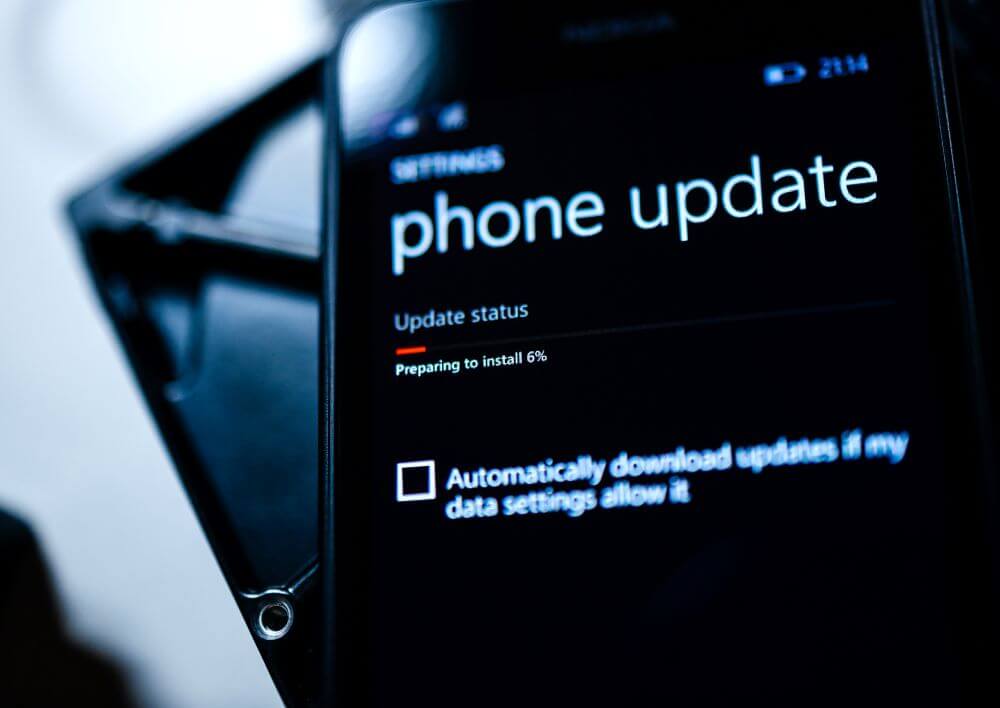
System updates often include bug fixes, performance improvements, and security enhancements that help apps run smoothly.
Ignoring these updates can cause persistent problems across multiple apps.
How to Fix It
- Go to your phone settings
- Navigate to software update
- Check for available updates
- Download and install the update
- Restart your phone after installation
Bonus Tips to Prevent App Crashes
- Avoid installing apps from unknown sources
- Keep your phone free from malware
- Limit the number of apps running at once
- Use lightweight versions of apps if your phone is older
- Restart your phone regularly
Conclusion
App crashes can be frustrating, but they are usually easy to fix when you understand the root cause. From clearing cache and updating apps to freeing up storage and restarting your device, these simple tricks can solve most problems quickly.
By applying these solutions consistently, you can enjoy a smoother and more reliable smartphone experience without unnecessary interruptions.
Read More On: