


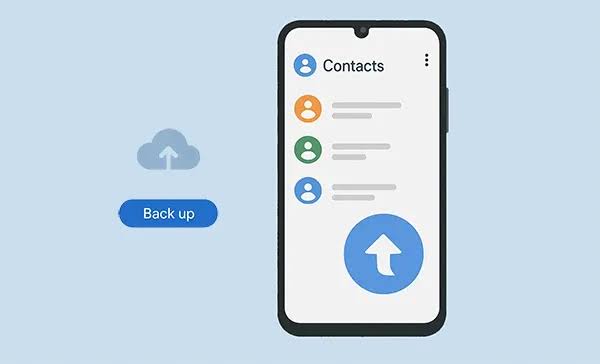
The nightmare of every smartphone user is that sudden, hollow feeling when you power on a brand-new device only to realize your address book is completely empty. Whether you are upgrading to the latest flagship or finally making the jump from Android to iPhone, your contacts are the digital lifelines that connect you to your professional network, family, and friends.
In the past, moving contacts was a tedious chore involving manual typing or unreliable SIM card transfers. Today, the process has evolved into a sophisticated synchronization dance between local hardware and cloud servers. To ensure you never lose a single digit, we have compiled this comprehensive guide on the most effective, fail-safe methods to secure your data. This is not just a basic tutorial; it is a complete technology solution designed to keep your digital identity intact during any transition.
The Fundamental Importance of Contact Redundancy
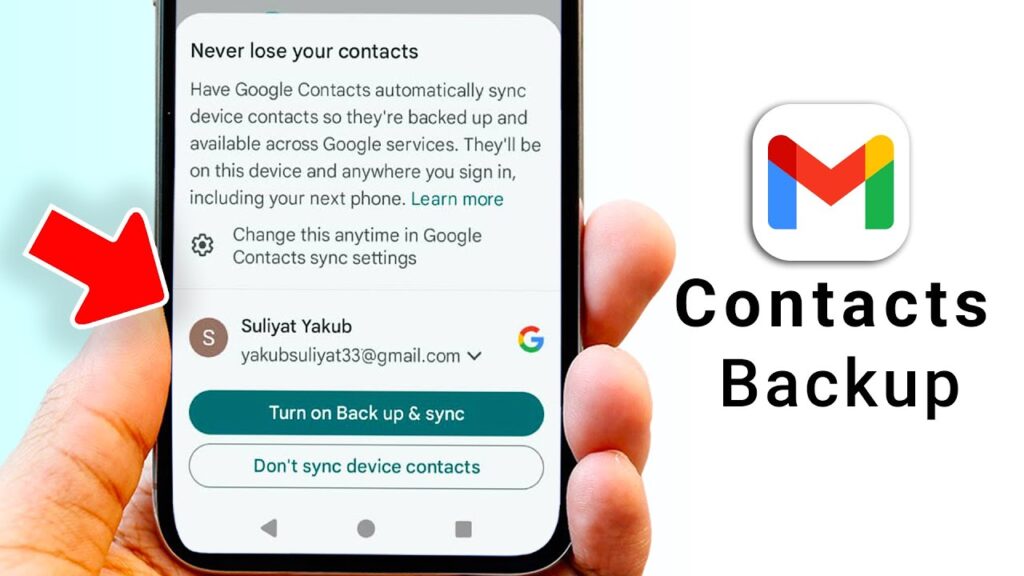
Before we dive into the technical steps, it is vital to understand that a contact “backup” is different from a contact “transfer.” A backup ensures that your data exists in at least two places at once. If your current phone crashes, gets stolen, or suffers water damage during the transition period, a cloud-based backup acts as an insurance policy.
Modern operating systems like Android and iOS have built-in hooks that handle this automatically, yet many users unknowingly disable these features to save battery or data. We will explore how to re-enable these systems and how to perform manual exports for those who prefer keeping their data offline.
Get TikTok SEO Cheat here
Android Solution: Leveraging the Power of Google Account Sync
For Android users, the most seamless method involves the Google Account. Since Android is a Google product, the integration is deep and virtually invisible once configured correctly.
Detailed Step-by-Step for Google Sync:
- Open Settings: Navigate to the main Settings menu on your Android device.
- Locate Google Services: Scroll down and tap on Google.
- Backup Settings: Inside the Google menu, select Backup. Ensure that the toggle for Backup by Google One is turned on.
- Google Contacts Sync: Tap on Google Account Data and ensure that the Contacts toggle is active.
- Manual Sync Trigger: If you are in a hurry, go back to Settings, tap on Passwords & Accounts, select your primary Gmail address, and tap Account Sync. Select the three dots in the top corner and tap Sync Now.
This process uploads every name, email, and phone number to the cloud. You can verify this by logging into contacts.google.com on any computer. If you see your list there, you are 100 percent safe to wipe your old phone.
iPhone Solution: Utilizing the iCloud Ecosystem
Apple offers a similar, highly polished experience through iCloud. If you are moving from one iPhone to another, this is the gold standard for data migration.
Detailed Step-by-Step for iCloud Sync:
- Access Apple ID: Open the Settings app and tap on your name at the very top of the screen.
- Enter iCloud Settings: Tap on iCloud and then select Show All under the Apps Using iCloud section.
- Toggle Contacts: Find Contacts in the list and ensure the switch is green. If it was off, a prompt will ask if you want to Merge local contacts with iCloud. Always select Merge.
- Perform iCloud Backup: Go back one screen, tap iCloud Backup, and select Back Up Now. This ensures that the very latest additions to your phonebook are captured in the cloud snapshot.
Cross-Platform Solution: Moving from Android to iPhone (and Vice Versa)
The real challenge arises when you switch operating systems. If you are moving from Android to iOS, the best tool is the Google Contacts App available on the Apple App Store.
The Hybrid Cloud Method:
By maintaining your contacts in a Google Account, you make yourself “platform agnostic.” Even on an iPhone, you can go to Settings, then Mail, then Accounts, and add your Gmail address. Once added, toggle the Contacts switch. Within seconds, all your Android contacts will populate your iPhone address book. This eliminates the need for third-party transfer cables or complex software.
The Manual Export: Creating a vCard (VCF) File
For users who do not trust the cloud or need to move contacts to a device that lacks internet access, the vCard method is the ultimate technical workaround. A VCF file is a standardized digital business card that nearly every electronic device can read.
How to Create a VCF Master File:
- Open the Contacts app on your phone.
- Go to Fix & Manage or Settings within the app.
- Select Export to file.
- Choose the account or contacts you wish to save.
- The phone will generate a file usually named contacts.vcf.
Pro Tip: Once this file is generated, email it to yourself or save it on Google Drive. When you get your new phone, simply open that email attachment, and the new device will ask if you want to Import all contacts. This is a bulletproof manual backup.
The SIM Card Backup: A Risky Legacy Method
Many users still rely on the “Export to SIM” feature. While this was the standard in 2005, it is highly discouraged today for several reasons. SIM cards can only hold a limited number of contacts (usually 250). Furthermore, they do not support modern data fields like home addresses, profile pictures, or multiple phone numbers for a single person. If your SIM card is damaged during the swap, your data is gone forever. Use this only as a last resort for very basic phone numbers.
Technical Comparison of Backup Methods
| Method | Best For | Pros | Cons |
|---|---|---|---|
| Google Sync | Android Users | Automatic and real-time | Requires Google Account |
| iCloud Sync | iPhone Users | Seamless Apple integration | Limited free storage (5GB) |
| vCard (VCF) Export | Offline Backups | No internet needed after export | Manual process; easily outdated |
| SIM Card Backup | Feature Phones | No data or account required | Very limited storage; no photos |
Third-Party Apps: When Should You Use Them?
There are numerous apps like Copy My Data or My Contacts Backup available on both stores. These are useful if you are dealing with a device that has a broken screen or a faulty operating system that prevents standard sync methods. However, always be cautious with your privacy. Only use reputable apps with high ratings to ensure your personal phone numbers aren’t being harvested by unknown servers.
The Restoration Process: Bringing Data to Life
Backing up is only half the battle. Once you have your new device in hand, follow this checklist to restore your data:
- Sign In Early: During the initial setup of your new phone, sign into your Google or Apple account immediately.
- Wait for the Sync: Contacts can take up to 10 minutes to populate depending on your internet speed. Do not panic if the list looks empty for the first few minutes.
- Check Default Account: Ensure your new phone is saving new contacts to the cloud by default. On iPhone, check Settings > Contacts > Default Account. On Android, check the Contacts app settings > Default account for new contacts.
Verification Checklist Before Wiping the Old Device
Never perform a factory reset on your old phone until you have completed these three checks:
- Count the Contacts: Check the total number of contacts on the old phone and compare it to the new one.
- Spot Check: Look for your most recently added contact on the new device to ensure the latest sync was successful.
- Web Verification: Log into the web version of your cloud provider (iCloud.com or Contacts.google.com) to see if the data is physically present on the server.
Frequently Asked Questions (FAQ)
Can I move contacts from a Blackberry or Windows Phone to a new Android?
Yes. Use the Export to VCF method. Save the file to an SD card or email it, then import it into your new Android device.
Why are some of my contacts missing after a sync?
This usually happens because those specific contacts were saved to the Phone Storage or the SIM Card rather than the Google/iCloud Account. You must manually move them to the cloud account on the old device first.
Will my contact photos transfer as well?
If you use Google or iCloud sync, yes. If you use a SIM card transfer, all photos and extra details will be lost.
What happens if I have duplicate contacts after the transfer?
Both Google and Apple offer a Merge Duplicates tool within their respective Contacts apps. Run this once the transfer is complete to clean up your list.
Read More On: