


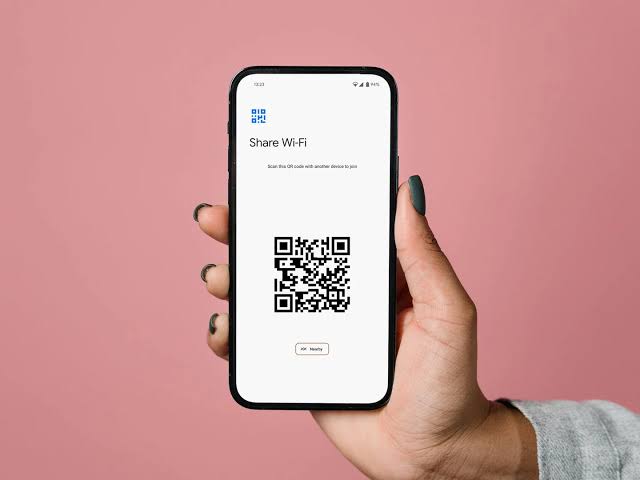
We have all been there. A friend visits your home or office, sits down, and asks the inevitable question: “Please, what is your Wi-Fi password?” You reach for your phone or router, only to realize that your mind is completely blank. Because your own devices connect automatically every day, you haven’t actually typed out that password in months.
Instead of panicking or walking over to your router to press the reset button, you can easily retrieve the network key directly from the devices you are currently using. Every modern operating system stores these security keys deep within its system files to enable seamless automatic connections. Whether you are running a computer or a smartphone, the credentials are right there waiting to be uncovered.
This expressively detailed guide will show you exactly how to find your Wi-Fi password on any device, including Windows computers, Android phones, and iPhones. By following these step-by-step troubleshooting solutions, you will be able to retrieve your security credentials in a matter of minutes without disrupting your network connection.
Windows 10 and 11: The Command Prompt Method
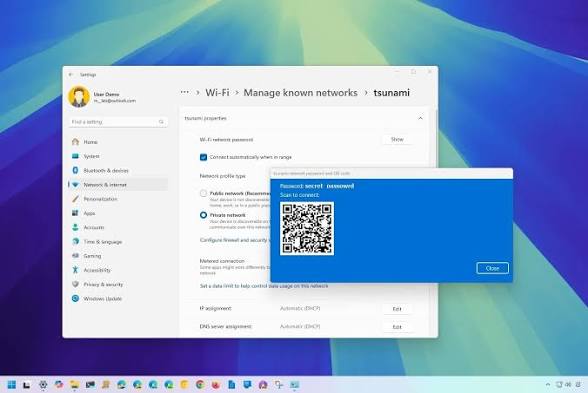
For power users and those who prefer a swift solution, the Command Prompt is the fastest utility tool to unearth a hidden network security key on Windows. This technical method bypasses multiple settings menus and pulls the raw data directly from the wireless profile configuration files stored by the operating system.
Get TikTok SEO Cheat here
First, you need to open the search bar on your Windows taskbar, type “cmd” into the box, right-click on the Command Prompt icon, and select “Run as administrator.” Running the utility as an administrator ensures you have the correct system permissions to view network security profiles.
Once the black console screen appears, type the following command to view a comprehensive list of every wireless network your computer has ever connected to:
netsh wlan show profiles
Press the Enter key. Look through the list under the User Profiles section to locate the exact name of the Wi-Fi network you want to inspect.
Once you have identified the target network name, type the second command below, replacing the placeholder text with your actual Wi-Fi network name:
netsh wlan show profile name=”YOUR_WIFI_NAME” key=clear
Press Enter. The console will display a long list of technical deployment details. Scroll down to the Security Settings block. Right next to the line that reads “Key Content,” you will see your plain text Wi-Fi password written out completely.
Windows: The Settings App and Control Panel Method
If you prefer a visual interface over typing code into a black command box, Windows offers a reliable alternative through the traditional Control Panel and Settings architecture. This route is ideal for users who want a simple click-through path while troubleshooting on a Windows 10 or Windows 11 machine.
Start by clicking on the Start Menu and opening the Settings gear application. From the main menu, navigate directly to the Network & Internet category. Scroll down through the status window until you find the Advanced Network Settings link, then click on it to open further hidden management tools.
Next, look for the option labeled “More network adapter options” or search directly for “Control Panel” in your Windows search bar and navigate to Network and Sharing Center. This classic interface displays your active network connections clearly.
Locate your active Wi-Fi connection link, which is usually highlighted in blue next to the text that reads “Connections.” Click on this link to launch a small status dialogue box.
Inside this status window, click on the button named “Wireless Properties.” A new properties box will pop up on your screen. Switch from the Connection tab over to the Security tab at the top of the box.
You will now see a field labeled “Network security key” filled with hidden black dots. To reveal the password, simply check the small box directly underneath labeled “Show characters.” The black dots will instantly change into plain text, showing your current Wi-Fi password.
Android: The QR Code Sharing Shortcut
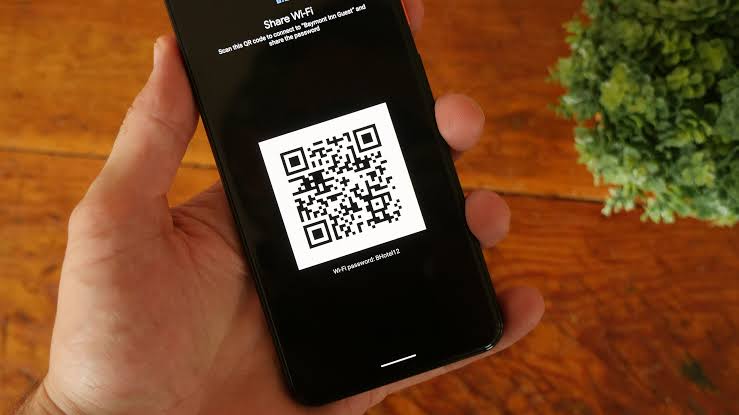
Modern Android operating systems make sharing network keys exceptionally easy by utilizing secure graphical codes. This method allows you to visually display your credentials to another user or pull the character string directly onto your own screen without needing root access.
To use this feature, slide down your notification shade from the top of your Android screen and long-press the Wi-Fi icon to enter your wireless settings. Alternatively, you can open your main Apps menu, tap Settings, go to Network & Internet, and select the Internet or Wi-Fi option.
Tap on the gear icon located right next to the name of the Wi-Fi network you are currently connected to. This action will open the network details panel. Look for a button that features a small matrix symbol labeled “Share” or “QR Code.”
When you tap this share button, your phone will ask you to verify your identity using your fingerprint, face unlock, or lock screen PIN code for security purposes. Once authenticated, a large QR code will appear on your screen.
While another phone can simply scan this code to connect instantly, you can look closely at the text directly underneath the QR code box. On most clean Android interfaces, the network password is printed out clearly in plain text right below the graphics. If your specific phone brand hides it, you can take a screenshot of the QR code, upload it to a free online QR scanner app, and extract the text password instantly.
Android: The Advanced Root File Manager Method
For older Android devices or situations where the QR code option is entirely absent, retrieving a password requires accessing the core root directory of the phone. This technical path requires a rooted device, as standard Android security blocks users from browsing core system folders where sensitive configuration files are kept.
If your Android device is rooted, you will need to download a highly capable root-browser file manager application from the app store, such as Solid Explorer or Root Browser. Standard pre-installed file managers will not work for this specific assignment.
Launch your specialized file manager app and grant it superuser or root permissions when prompted by your system management software. Navigate away from your standard storage folder and head back to the root directory, which is usually signified by a single forward slash symbol.
From the root directory, follow this specific folder pathway carefully:
data / misc / wifi
Inside the final Wi-Fi folder, look for a text configuration file named wpa_supplicant.conf or WifiConfigStore.xml. Open this file using a built-in text viewer or code editor tool.
Scroll through the blocks of text inside the document. Each network profile will be enclosed in a bracket block. Look for the line that displays your network name, which is marked as ssid=”Your_Network_Name”. Directly underneath that line, you will see a parameter that reads psk=”Your_Password”. The characters inside those quotation marks are your saved Wi-Fi password.
iPhone: The Built-In Wi-Fi Settings View
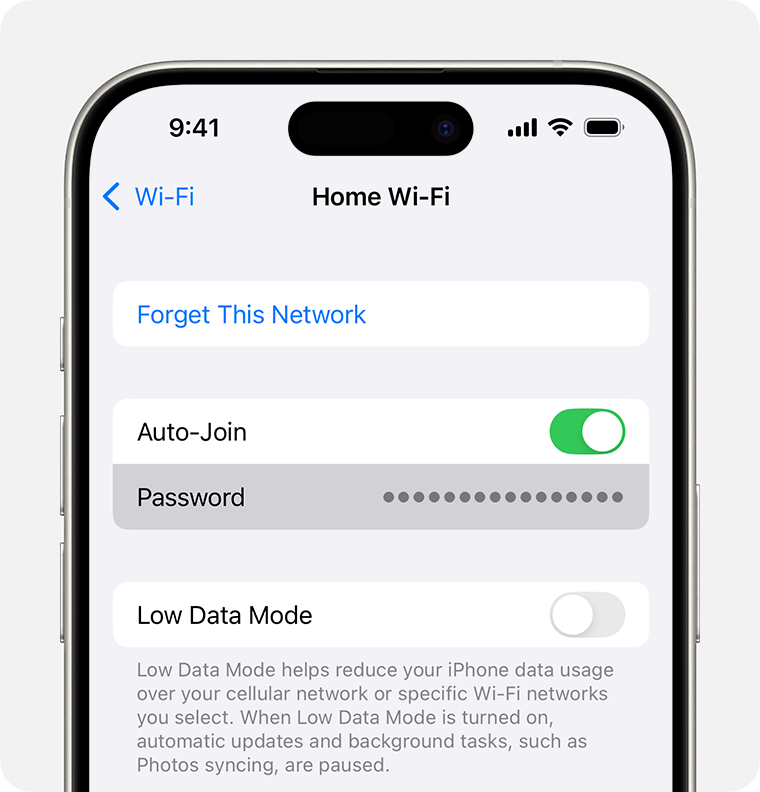
Apple used to keep wireless passwords heavily encrypted and hidden away from users, but modern iOS updates have introduced a highly requested feature that allows you to view your network keys directly within the device settings app.
Unlock your iPhone and open the native Settings application from your home screen. Scroll down slightly and tap on the Wi-Fi menu option to view your wireless connections.
If you want to find the password for the network you are currently using, locate the connection at the top of the screen. Tap on the blue info icon, which looks like a small letter “i” inside a circle, located on the far right side of the network row.
The screen will populate with various network configurations, including your IP address and DNS routing details. Look closely for the row labeled “Password,” which will be populated by a row of secure grey dots.
Tap directly onto those grey dots. Your iPhone will immediately trigger Face ID or Touch ID authentication to verify that you are the true owner of the device. Once the biological authentication succeeds, the grey dots will instantly vanish, revealing the plain text password. You can also tap the “Copy” pop-up option to save the password to your clipboard for easy sharing.
iPhone: The iCloud Keychain and Mac Sync Method
If you are using an older iPhone model that does not support direct password viewing, or if you need to find a password for a network you used in the past, you can leverage Apple’s cloud sync ecosystem via a Mac computer.
To make this method work, you must ensure that both your iPhone and your Mac computer are logged into the exact same Apple ID account. You also need to confirm that iCloud Keychain synchronization is enabled on both machines by checking your iCloud account preferences.
On your Mac computer, press the Command key and the Spacebar simultaneously to launch the Spotlight search box. Type “Keychain Access” into the search field and press the Enter key to open Apple’s secure credential database utility.
Once the Keychain Access window loads, look at the sidebar on the left and select the System keychain category, then click on the Passwords tab at the top of the interface.
Use the search bar in the upper-right corner of the window to type in the name of the Wi-Fi network you are trying to recover. The system will filter out all other entries and display your target network.
Double-click on the correct network name from the search results to open a small details window. At the bottom of this new box, you will see a blank field next to a checkbox labeled “Show password.” Check that box, enter your Mac administrator login password to clear the security barrier, and the Wi-Fi password will display in the text box.
The Router Sticker Method: Back to Basics
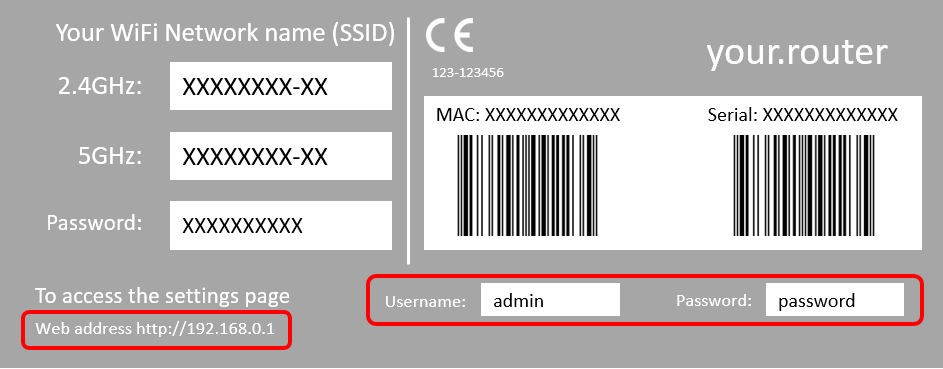
When digital device troubleshooting options run thin, the easiest solution often requires physical inspection of your internet equipment. Internet Service Providers always configure routers with default security details before shipping them out to customers.
Walk over to your physical wireless router or broadband gateway box. Turn the device around to examine the back panel, or flip it over entirely to check the plastic base plate on the bottom.
Look for a manufacturer sticker or a printed paper label containing technical barcode configurations. This sticker contains vital factory data including the model number, serial number, and MAC address of the equipment.
Locate the lines of text explicitly labeled as:
- Wireless Network Name (often shortened to SSID)
- Wi-Fi Password
- Wireless Key
- WPA/WPA2 Key
The alphanumeric string printed next to these labels is your original factory password. If you have never manually logged into your router settings to change the password, these credentials will work perfectly on any smartphone or computer.
The Router Admin Page: Remote Configuration Access
If you have changed your password from the factory default but cannot find it on your phone or computer, you can log directly into your router’s operating system using a web browser to view the active security configurations.
Ensure your computer or phone is connected to the router via a network cable or via the active wireless signal. Open any web browser app like Google Chrome or Safari and click on the address bar at the top of the page.
Type in your router’s local gateway IP address. The most common router gateway addresses used by network brands include:
- 192.168.1.1
- 192.168.0.1
- 192.168.8.1
Press Enter to load the internal gateway screen. You will be greeted by a login portal asking for an administrator username and password. If you do not know these details, check the router sticker mentioned previously, as the default admin login credentials are usually printed there. Common defaults are often “admin” for the username and “admin” or “password” for the security field.
Once inside the main router dashboard dashboard, navigate to the Wireless, Wireless Security, or WLAN settings tab in the navigation menu. Look for the security configuration section. You will find a field labeled Pre-Shared Key or WPA Passphrase. Click the nearby “Unmask” or “Show Password” button to view your active Wi-Fi key.
Device Methods Comparison Matrix
| Device Type | Primary Method | Speed Level | Technical Difficulty | Special Requirements |
|---|---|---|---|---|
| Windows PC | Command Prompt | Ultra Fast | Medium | Admin Privileges |
| Windows PC | Network Settings | Moderate | Low | None |
| Android Phone | QR Code Display | Instant | Low | Modern Android OS |
| Android Phone | Root File System | Slow | High | Root Access Granted |
| Apple iPhone | Wi-Fi Info Panel | Instant | Low | Recent iOS Version |
| Mac Computer | Keychain Access | Fast | Medium | iCloud Sync Active |
The Reset Button: Your Absolute Last Resort
If every single software method fails and the default sticker on your hardware has been scratched off or lost, your remaining option is to execute a complete hard reset of the physical router. This action wipes out all custom settings, erasing your forgotten password and returning the device to its pristine factory state.
Locate the tiny reset hole on the back or side panel of your router housing. This button is purposefully recessed deep inside the plastic shell to prevent accidental presses during daily operations.
Straighten out a metal paperclip or find a sturdy toothpick. Insert the point gently into the reset hole until you feel a small button depress beneath your hand.
Press and hold the button down firmly for a continuous period of ten to fifteen seconds. Keep holding the clip in place until you notice all the LED indicator lights on the front of the router flash brightly and then turn off completely.
Release the button and allow the router two to three minutes to boot back up and recalibrate its system files. Once the power light stabilizes, the network will be live again. You can now connect your computers and phones using the original factory network name and password printed on the physical device sticker.
Network Security Warning
While knowing how to retrieve wireless keys is highly convenient for personal troubleshooting, it serves as a stark reminder of how vulnerable your network can be if unauthorized individuals gain access to your active machinery. Anyone who manages to connect their laptop to your network for even a few seconds can use the Command Prompt method to copy your master password and share it with others.
To protect your home or business data from security breaches, never leave your router’s administrative gateway password set to the factory default configuration. Always create a separate, isolated “Guest Network” on your router admin dashboard for visitors, ensuring your main network remains private and secure.
Frequently Asked Questions
Can I find my Wi-Fi password if my device is not currently connected to the network?
Yes. On Windows devices, you can use the Command Prompt method to see passwords for any historical network profile stored in the system registry files. On Apple computers, the Keychain Access app stores all historical keys regardless of whether you are actively online or offline.
Why does my Android phone hide the password text beneath the shared QR code?
Certain mobile manufacturers apply custom software skins over the base Android operating system that prioritize strict privacy. If your phone conceals this text, simply take a screenshot of the code display and run it through a standard barcode reading utility to read the embedded plain text data.
Will restarting my router change my custom Wi-Fi password back to default?
No. A simple power cycle or restart involves turning the machine off and on again to clear internal memory caches, which preserves your custom settings. Only a deliberate physical hard reset using a paperclip in the recessed reset hole will clear your custom passwords.
Read More On: