

When the Boost Post option disappears on Facebook, it stops you from promoting content, reaching new audiences, and driving low-cost engagement. This issue is extremely common, yet Meta rarely explains it clearly.
This guide provides a complete, up-to-date solution for every reason the button becomes unavailable and how to restore your ability to boost posts quickly.
This article is structured around the following keyphrases:
- “Boost unavailable Facebook”
- “Why can’t I boost my Facebook post”
- “How to fix Facebook boost not working”
- “Facebook boost post disabled”
- “Boost post greyed out”
What Does “Boost Unavailable” Mean on Facebook?
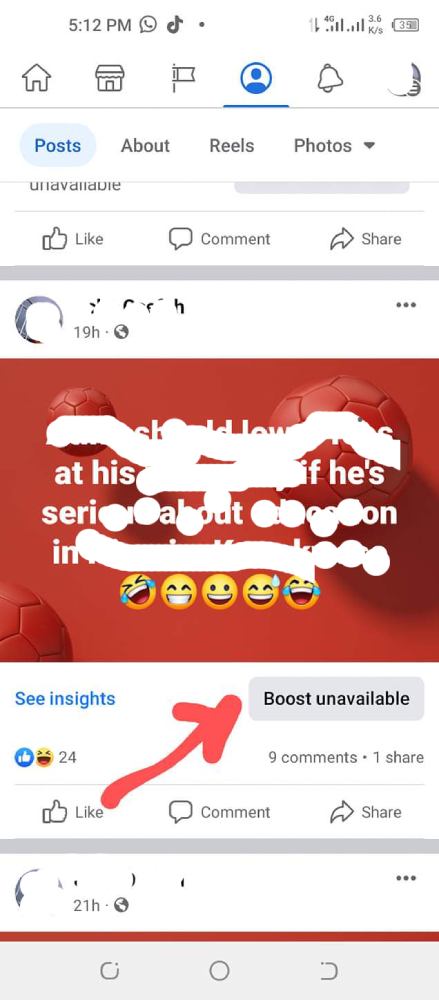
“Boost Unavailable” means Facebook has restricted a post or your page from running paid promotions. The restriction may come from the type of post, your page settings, your account status, or Meta’s advertising policies.
Get TikTok SEO Cheat here
Boosting is a simplified version of Facebook advertising, so any setting that affects ads can also block boosting.
12 Proven Reasons Facebook Boost Is Unavailable And How to Fix Each One
Below is the most complete list of causes and solutions available. Each section includes the exact steps required to resolve the issue.
1. The Post Type Is Not Eligible for Boosting
Facebook blocks boosting for certain post formats.
Non-boostable post types:
- Cover photos
- Shared posts
- Shared albums
- Expired offers
- Posts containing fbclid tracking parameters
- Restricted content categories
Fix:
Create a fresh, standalone post and ensure it is published publicly.
2. Your Page Is Unpublished
Unpublished (private) pages cannot run boosts because they are not publicly visible.
How to fix:
Page Settings → Page Visibility → Publish Page
Refresh and check again.
3. The Post Is Unpublished, Scheduled, or Draft
Facebook only boosts content visible to the public.
Fix:
Publish the post immediately → Refresh → Boost.
4. You Are Not Assigned a Role That Can Boost Posts
Only specific roles have advertising permissions.
Roles allowed to boost:
- Admin
- Editor
- Advertiser
- Moderator
Fix:
Ask the page owner to update your role under Page Access.
5. Your Ad Account Is Restricted or Payment Method Failed
Boosting requires an active Meta ad account and a working payment method.
Fix:
- Go to Meta Ads Manager
- Check Account Quality
- Update or replace your payment method
- Clear unpaid balances
Read also:
- How To Secure Your Cold Wallets From Hackers (Cryptocurrency)
- 4 Reasons Why Ads Are Not Showing on the Website
6. The Post Contains a Facebook Click ID (fbclid)
If you copied a URL from Facebook and pasted it into your post, it may contain tracking parameters that block boosting.
Example of blocked link:
https://example.com/page?fbclid=8FSJ73HS...
Fix:
Remove everything from ?fbclid= onward.
Repost with a clean link → Boost.
7. Your Page Is Unverified (Affects Live and Scheduled Videos)
Unverified pages have limited ad options for certain video formats.
Fix:
Apply for page verification through Facebook’s verification request form.
Ensure your page is complete, active, and represents a real brand.
8. The Post Violates Facebook’s Advertising Policies
Facebook blocks boosting on content that conflicts with its advertising rules — even if the content is allowed on the page.
Common triggers:
- Before/after photos
- Overly promotional language
- Financial guarantees
- Health claims
- Unsafe product categories
Fix:
- Review your post against Meta ad policies.
- Edit the post to meet requirements.
- Retry the boost.
9. The Post Contains Restricted Media
Some media formats cannot be boosted due to copyright, licensing, or metadata issues.
Fix:
Re-upload the media as a new file
→ Add caption
→ Publish
→ Boost
10. You Are Trying to Boost a Shared Post
Boosting promotes the original publisher, not your page.
Fix:
Recreate the post natively on your page.
Boost the original version.
11. Your Facebook Page Has Policy Warnings
Even minor violations can disable boosting temporarily.
Fix:
Go to Account Quality → Page Issues
Resolve any flagged items
Request review if needed
12. Meta Temporarily Restricted Your Page Based on User Feedback
If your page receives negative feedback (hides, reports, spam flags), boosting may be paused.
Fix:
- Post higher-quality, relevant content
- Avoid clickbait
- Improve engagement rate
- Wait for the restriction to expire (typically 3–7 days)
Boost won’t be available if your page or the post is in violation of Facebook’s advertising guidelines.
Step-by-Step: How to Properly Boost a Facebook Post
Once the Boost button becomes available, follow the optimized setup:
- Publish a new post (image, video, or text-based).
- Click Boost Post.
- Choose a goal (Engagement, Website Traffic, Messages).
- Select a custom audience (age, interests, location).
- Set daily budget (Facebook recommends at least $3–$5/day).
- Select duration (5–10 days for best delivery).
- Add a payment method.
- Submit the boost.
Preventing “Boost Unavailable” in the Future
To avoid future restrictions:
- Keep your page fully published
- Maintain a completed About section
- Stay compliant with Meta advertising rules
- Use clean URLs (no tracking parameters)
- Avoid boosting shared content
- Monitor your ad account for warnings
- Keep payment methods updated
- Maintain a positive engagement-to-hide ratio
Final Thoughts
“Boost Unavailable” is a preventable issue once you understand the causes. By applying the fixes above, your page will regain full boosting access and maintain consistent reach and visibility.