


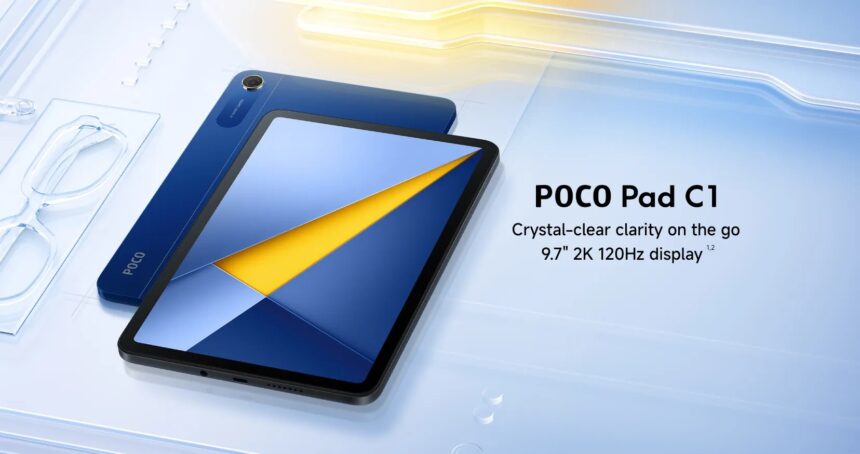
The modern digital lifestyle continues to evolve at a rapid pace, and one of the most noticeable shifts is the growing demand for compact, powerful, and affordable tablets that can comfortably bridge the gap between smartphones and full sized laptops. Many users now require a portable device that supports reading, note taking, media consumption, online learning, and light productivity without overwhelming complexity or cost. This is where a device like the Poco Pad C1 becomes especially relevant.
Rather than positioning itself as a luxury gadget, this tablet is designed as a practical digital companion for students, creators, and professionals who need a reliable screen for everyday tasks. It combines a sharp display, efficient processor, long lasting battery, and lightweight design into a single portable unit that can be adapted to different usage needs. However, to truly unlock its full potential, users must understand how to properly set up, configure, and optimize the device for their personal workflow.
This guide is designed not just to describe the tablet but to walk you step by step through how to use it effectively. From initial setup to performance tuning, display adjustments, storage expansion, and battery optimization, every section is structured to help you transform the device into a powerful productivity tool.
Unboxing and Initial Setup Guide
When you first power on the device, the goal is to ensure that it is properly configured for smooth daily operation. Begin by selecting your preferred language and connecting to a stable WiFi network. This ensures that system updates and application downloads proceed without interruptions.
Get TikTok SEO Cheat here
Next, sign in with your preferred account to enable cloud synchronization for contacts, documents, and media files. This step is important because it allows seamless access across devices within the same ecosystem.
Once inside the home interface, take a moment to organize the layout. Place frequently used apps such as note taking tools, browser applications, and video conferencing platforms on the main screen for quick access. Remove unnecessary pre installed applications that you may not use to improve clarity and system responsiveness.
Display Optimization and Viewing Experience
The display is one of the strongest features of this device, and optimizing it properly can significantly improve usability. Begin by adjusting brightness based on your environment. For indoor usage, moderate brightness levels reduce eye strain, while outdoor environments may require higher brightness settings for clarity.
Enable eye comfort mode during extended reading or study sessions. This reduces blue light exposure and helps maintain visual comfort over long periods.
You should also adjust text scaling and display size settings to ensure that documents, web pages, and educational materials are easy to read without constant zooming.
For media consumption, activate the high refresh display mode within system settings to ensure smoother scrolling and improved animation fluidity when browsing or watching videos.
Performance Optimization and Smooth Usage Tips
To maintain consistent performance, it is important to manage background applications effectively. Close unused apps running in the background, especially during multitasking sessions such as online meetings or document editing.
Use lightweight versions of applications where possible to reduce memory consumption. For example, simplified browser modes or document viewers can help maintain system responsiveness.
Avoid installing unnecessary heavy applications that do not contribute to your daily workflow. This helps preserve storage space and keeps system performance stable over time.
When gaming or running heavier applications, reduce graphical settings to medium or low levels to ensure stable frame performance and prevent overheating.
Battery Optimization and Power Management
Battery efficiency plays a major role in long term usability. To extend usage time, reduce screen brightness when full brightness is not required. Enable adaptive brightness so the system automatically adjusts lighting based on surroundings.
Turn off background syncing for apps that do not require constant updates. This significantly reduces power consumption during idle periods.
Activate battery saver mode when the battery level drops below mid range capacity. This limits background processes and extends usage time for essential tasks such as messaging and browsing.
Avoid keeping the device plugged in continuously after reaching full charge, as this can affect long term battery health.
Software Experience and Productivity Enhancement
The operating system is designed to support cross device interaction and multitasking efficiency. You can use split screen mode to run two applications simultaneously, such as taking notes while watching a lecture or attending a virtual meeting while reviewing documents.
Drag and drop functionality between supported applications allows quick file sharing without needing external storage tools.
Customize the home screen layout by grouping productivity apps together and separating entertainment apps for better organization. This improves focus during work or study sessions.
Enable gesture navigation if you prefer a cleaner interface with more screen space for content viewing.
Storage Expansion and Connectivity Guide
If you are using the base storage option, you can significantly expand capacity using a memory card. Insert the card into the dedicated slot and format it through system settings to ensure compatibility.
Store media files such as videos, photos, and downloaded documents on the external storage to free up internal memory for system performance and essential applications.
For connectivity, ensure Bluetooth devices such as keyboards, headphones, or stylus tools are properly paired through the settings menu. This enhances productivity and allows the tablet to function more like a portable workstation.
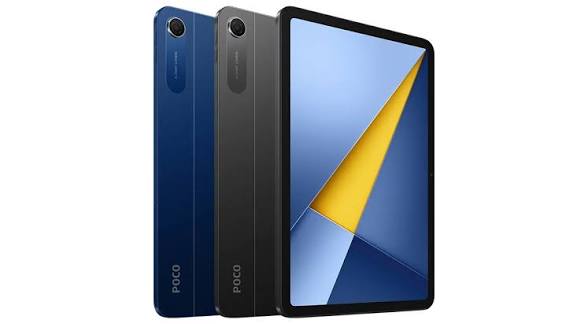
Full Specifications Overview
| Feature | Specification |
|---|---|
| Display | 9.7 inch IPS LCD panel with 2K resolution of 2048 x 1280 and 120Hz refresh capability |
| Processor | Qualcomm Snapdragon 6s 4G Gen 2 built on 6 nanometer process |
| Memory Options | 4GB RAM with 64GB storage or 6GB RAM with 128GB storage |
| Storage Expansion | Supports external memory expansion up to 2TB |
| Battery | 7600mAh capacity battery |
| Charging | 18W wired charging support |
| Rear Camera | 8MP sensor capable of 1080p recording |
| Front Camera | 5MP sensor for video calls and meetings |
| Audio | Dual stereo speakers with 3.5mm audio port |
| Operating System | Android with HyperOS interface |
| Weight | 406 grams |
| Thickness | 7.4mm slim profile |
Step by Step Usage Checklist for Maximum Efficiency
• Fully charge the device before first use to calibrate the battery system
• Connect to WiFi and complete system updates immediately after setup
• Remove or disable unused pre installed applications
• Organize home screen into productivity and entertainment zones
• Enable eye comfort mode for reading and study sessions
• Activate split screen for multitasking workflows
• Install essential productivity applications only
• Expand storage using a memory card if required
• Adjust brightness and sound levels based on environment
• Enable battery saver during extended outdoor usage
Conclusion
This device is best understood as a flexible digital tool rather than a high end performance machine. When properly configured, it becomes a reliable companion for learning, communication, content consumption, and light productivity tasks. The key to maximizing its value lies in understanding its settings, managing its resources wisely, and adapting it to your personal workflow. With the right setup approach, it can serve as an efficient everyday digital workstation that remains portable, practical, and easy to use across different environments.
Read More On: