


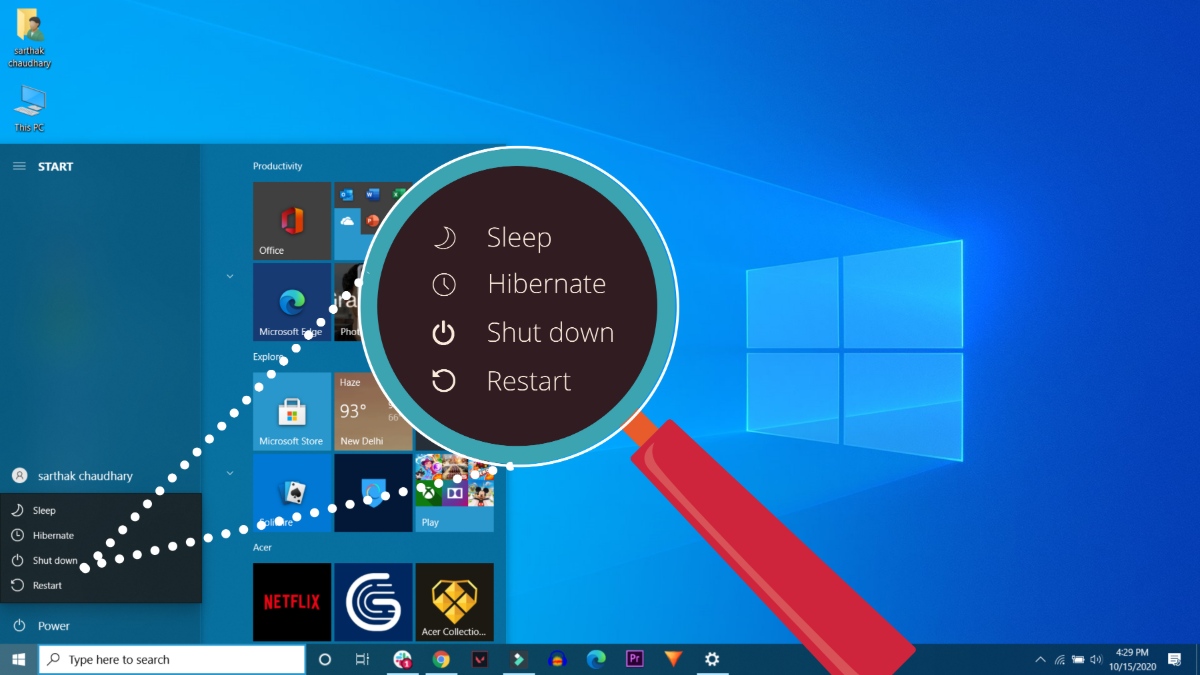
Many computer users see the Sleep and Hibernate options on their Windows PC but don’t really know which one to use. Both features help save power and allow you to resume your work quickly, but they work in very different ways.
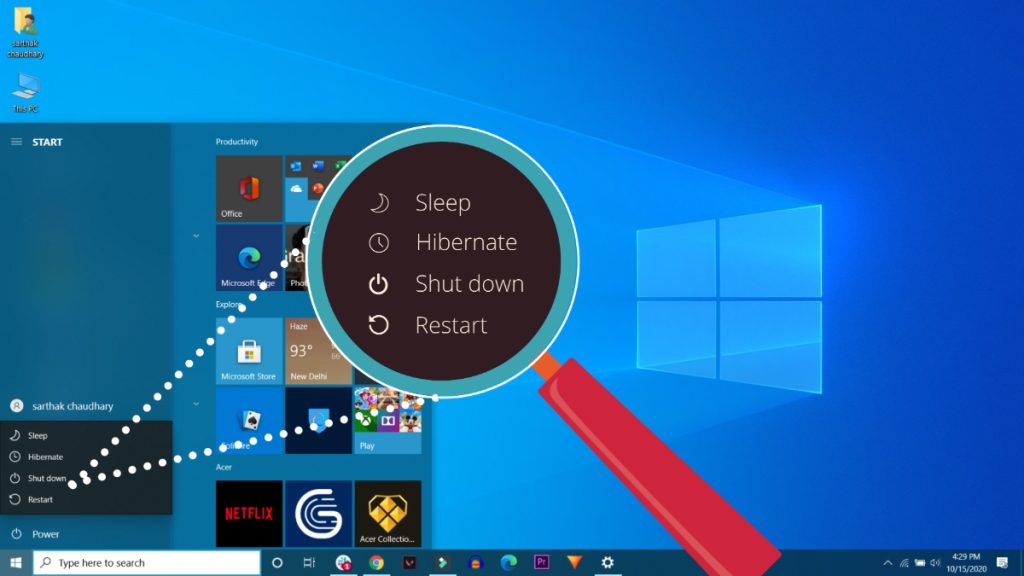
Understanding the difference between Sleep vs Hibernate can help you improve your computer’s performance, protect your work, and manage battery life better.
In this guide, you will learn:
- What Sleep mode is
- What Hibernate mode is
- Key differences between Sleep and Hibernate
- When to use each option
- How to enable or fix missing Sleep or Hibernate options in Windows
Let’s start with the basics.
Get TikTok SEO Cheat here
What Is the Difference Between Sleep and Hibernate?
Sleep and Hibernate are power-saving modes in Windows designed to pause your computer while keeping your work safe.
The main difference is where your current work is stored.
- Sleep mode saves your session in RAM (memory) while the computer uses a small amount of power.
- Hibernate mode saves your session to the hard drive or SSD and completely turns the computer off.
Because of this difference, each mode is best suited for different situations.
What Is Sleep Mode?
Sleep mode is a low-power state that pauses your computer while keeping your current session in memory.
When your PC goes into Sleep mode:
- The screen turns off
- The processor and hardware enter low power state
- Your open apps and files remain stored in RAM
- The computer wakes up almost instantly when you press a key or move the mouse
This works like pressing pause on a movie.
Since RAM still needs power to retain data, your PC continues using a small amount of electricity.
Advantages of Sleep Mode
1. Instant Resume
Your computer wakes up in seconds, allowing you to continue exactly where you stopped.
2. Perfect for Short Breaks
Sleep mode is ideal when stepping away from your computer for a short time, such as:
- lunch breaks
- meetings
- quick errands
3. Saves Energy Compared to Active Use
Sleep uses far less power than leaving your computer fully running.
Disadvantages of Sleep Mode
- Uses a small amount of electricity
- If power is lost (or laptop battery dies), unsaved data stored in RAM can be lost
What Is Hibernate Mode?
Hibernate mode saves your current session to your storage drive (HDD or SSD) and then turns the computer completely off.
When you turn the PC back on, Windows reloads the saved session so you can continue from where you stopped.
This is done through a system file called hiberfil.sys, which stores everything that was in RAM.
Advantages of Hibernate Mode
1. Zero Power Consumption
Unlike Sleep mode, your computer uses no power at all while hibernating.
2. Safe for Long Breaks
Because everything is saved to the disk, your work remains safe even if power is lost.
3. Great for Laptops
Hibernate helps preserve battery life when you won’t use your laptop for several hours.
Disadvantages of Hibernate Mode
- Takes longer to resume than Sleep mode
- Requires disk space for the hibernation file
- Older computers with slow hard drives may take longer to wake up
Sleep vs Hibernate: Key Differences
| Feature | Sleep Mode | Hibernate Mode |
|---|---|---|
| Power Usage | Very Low | Zero |
| Resume Speed | Instant | Slower |
| Data Stored In | RAM | Hard Drive / SSD |
| Best For | Short breaks | Long breaks |
| Risk During Power Loss | Possible data loss | No data loss |
When Should You Use Sleep Mode?
Use Sleep mode when:
- You plan to return to your PC soon
- You want the fastest possible resume
- Your computer is plugged into power
- You are stepping away for minutes or a short break
Example situations:
- Taking a coffee break
- Pausing work during meetings
- Switching tasks temporarily
When Should You Use Hibernate Mode?
Use Hibernate mode when:
- You will not use the computer for hours
- You want to preserve battery life
- You are travelling with a laptop
- You want to keep all apps open without draining power
Example situations:
- Overnight breaks
- Carrying your laptop in a bag
- Long periods of inactivity
Modern SSD computers can resume from hibernation in 15–30 seconds, while older HDD systems may take longer.
What Is Hybrid Sleep?
Hybrid Sleep combines both Sleep and Hibernate.
It:
- Saves your session in RAM
- Also stores a copy on the hard drive
This allows quick resume like Sleep mode while protecting your data if power is lost.
Hybrid Sleep is commonly enabled on desktop computers by default.
How to Put Your Computer in Sleep or Hibernate Mode
On Windows 10 and Windows 11:
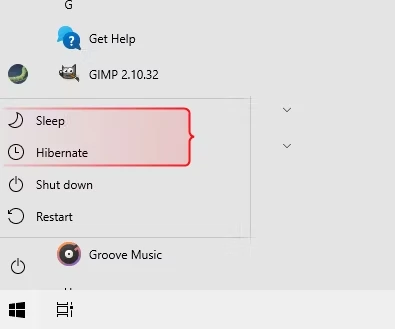
- Click the Start Menu
- Select the Power button
- Choose:
- Sleep
- Hibernate
- Restart
- Shut down
If Hibernate is enabled, it will appear alongside Sleep in the power options.
Why You May Not See the Hibernate Option
Sometimes the Hibernate option may not appear in Windows.
Common reasons include:
- Hibernate is disabled in system settings
- Device drivers are outdated
- Power options are restricted by an administrator
- BIOS settings do not support the feature
To enable Hibernate manually:
- Open Command Prompt (Admin)
- Type:
powercfg /hibernate on
- Press Enter and restart your PC.
How to Wake a PC from Sleep or Hibernate
Most computers wake from Sleep or Hibernate using:
- the power button
- a keyboard key
- a mouse movement
- opening the laptop lid
If your PC does not wake properly, check your device manual or system settings.
Sleep vs Hibernate: Which Is Better?
There is no universal “best” option — it depends on how long you will be away from your computer.
Use this simple rule:
Use Sleep for short breaks.
Use Hibernate for long breaks.
Sleep offers speed and convenience, while Hibernate provides maximum power savings and data protection.
Final Thoughts
Understanding the difference between Sleep and Hibernate in Windows helps you manage your computer more efficiently.
- Sleep mode keeps your PC ready to use within seconds and is best for short breaks.
- Hibernate mode completely powers off your PC while saving your session, making it ideal for long periods of inactivity.
Choosing the right option can improve battery life, reduce energy use, and help you resume work faster.
Read also:
- Breaking: Ilebaye wins Big Brother Naija All Stars, ₦120m grand prize
- 4 Reasons Why Ads Do Not Show on the Website
- How Hackers Can Hack Your Info When You Charge Your Devices: Juice Jacking
- How to Find Deleted Texts on Your Husband’s/Wife’s Phone
- 20 Best Free Cooking Apps for Both Nigerian and Foreign Dishes
You may read this: