


There is a specific kind of frustration that occurs when you go to capture a perfect moment or download an essential work document, only to be met by the dreaded Storage Space Running Out notification. In the digital age, our smartphones are our offices, our photo albums, and our entertainment hubs. When the storage fills up, the entire device begins to stutter. Apps lag, the camera refuses to open, and the system software struggles to breathe.
The most common advice is to delete your precious memories or uninstall the apps you use every day. However, for many users, that simply is not an option. You might find yourself looking at your storage settings and noticing that even though you do not have many apps, the Other or System category is bloated. This guide focuses on the technical “how to” of reclaiming that lost space. We are moving beyond the surface level to show you how to deep clean your Android operating system, compress data without losing quality, and manage hidden cache files that the average user never sees.
Understanding the Android Storage Breakdown
Before you start clicking buttons, you must understand what is actually consuming your space. Android categorizes data into Images, Videos, Audio, Documents, Apps, and the mysterious System/Other. Most people focus on the first four, but the real “storage thieves” are usually buried in the hidden folders created by your apps and the operating system itself.
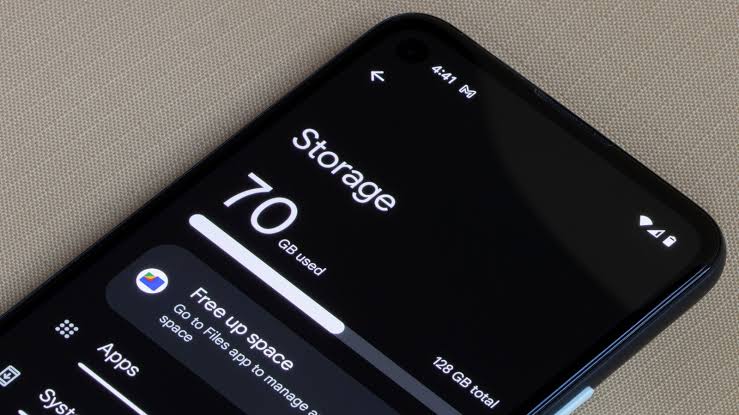
Go to Settings and then Storage. You will likely see a large bar labeled System or Other. This contains temporary files, update logs, and thumbnail databases. This is where we will perform our digital surgery to free up space without touching your actual files.
Get TikTok SEO Cheat here
Method 1: Clearing the Hidden “Other” and System Storage
The Other category is essentially a digital junk drawer. It contains everything that does not fit into standard categories, including app data, cached maps, and streaming media that you might have forgotten was downloaded for offline use.
To clear this effectively, you need to target the apps that generate the most background data. Apps like Telegram, WhatsApp, and TikTok are notorious for this. For instance, Telegram stores every video and photo you view in a hidden cache folder. Open your file manager and navigate to the Android/Data folder. By clearing these specific subfolders, you can often reclaim several gigabytes of space immediately. You are not deleting the messages; you are simply removing the local temporary copies that the app can redownload if ever needed.
Method 2: Compressing Media Without Losing Quality
If you refuse to delete your photos, the next best technical solution is Lossless Compression. Most Android photos are saved in high resolution, which takes up massive amounts of space.
Instead of deleting them, use a dedicated compression tool or the built in Google Photos feature to Recover Storage. This process converts your original photos into a high quality compressed format. You will still have the photos on your phone and in the cloud, but they will take up roughly 40% to 60% less space. This is a massive win for users who have thousands of images but do not want to lose a single memory.
Method 3: The Deep Cache Cleanse (The Technical Way)
Every app on your phone creates a Cache. This is supposed to make the app load faster by storing parts of the app in the memory. However, over time, this cache becomes corrupted or unnecessarily large.
Do not use the Clear Data button, as that will log you out of your apps and delete your settings. Instead, go to Settings > Apps > See All Apps. Sort them by size. Select the largest ones and tap Clear Cache. Doing this for your browser, YouTube, and social media apps can free up to 2GB of space in just a few minutes without affecting your personal data or login status.
Method 4: Managing Hidden WhatsApp Databases
For the average user in Nigeria, WhatsApp is the biggest storage hog. Even if you delete the videos, WhatsApp keeps a hidden “Database” of your chats every single day.
Navigate to Internal Storage > Android > Media > com.whatsapp > WhatsApp > Databases. You will see files named msgstore.db.crypt. WhatsApp usually keeps the last seven days of backups. You only need the most recent one. By deleting the older versions, you can clear hundreds of megabytes of space that are simply redundant copies of your current chat history.
Method 5: Offloading Large Files to the Cloud or SD Card
If your phone supports an SD Card, you should be moving your “static” files there. Static files are things like PDFs, old downloads, and music files that do not need the high speed of your internal storage.
If you do not have an SD card slot, utilize Google Drive or Telegram Cloud. You can upload your large documents and videos to a private Telegram “Saved Messages” chat and then delete the local file. The file remains accessible in the cloud whenever you have an internet connection, effectively giving you infinite storage for free. This is a powerful “how to” hack that most people overlook.
Method 6: Using Files by Google for Intelligent Cleanup
Files by Google is perhaps the most efficient utility for this task. It uses an algorithm to identify “Junk Files,” “Duplicate Files,” and “Large Downloads.”
Open the app and go to the Clean tab. It will show you a list of “Old Screenshots” or “Memes” that you likely do not need. More importantly, it identifies Duplicate Files. Many times, we have the same image or video saved in three different folders because we shared it across different apps. Deleting the duplicates keeps one original copy while freeing up the space occupied by the clones.
Technical Summary of Methods
| Method | Technical Action | Impact on Data |
| Cache Cleaning | Removes temporary app files | Zero data loss |
| Media Compression | Reduces file size of images | Retains all photos |
| Database Purge | Deletes old WhatsApp backups | Retains current chats |
| Cloud Offloading | Moves files to online servers | Access via internet |
| Duplicate Removal | Deletes identical file copies | Keeps one original |
How to Keep Your Storage From Filling Up Again
Solving the problem today is great, but preventing it from returning is better. Follow these technical settings to maintain your storage:
- Stop Auto-Downloads on WhatsApp: Go to WhatsApp Settings > Storage and Data. Turn off Media Auto-Download. This prevents every random video sent in group chats from automatically sitting on your phone’s memory.
- Limit Browser Cache: In Chrome, go to Settings > Site Settings > Data Stored. Periodically clear this to keep your web browsing from bloating your internal memory.
- Use Lite Apps: For apps like Facebook or Messenger, use the Lite versions. They provide the core functionality but take up a fraction of the space and generate far less cache data.
- Auto-Archive Documents: Periodically move your “Downloads” folder contents to a cloud service like Google Drive or OneDrive.
Frequently Asked Questions
- Why does my phone say storage is full when I have deleted everything?
This is usually due to the System Cache Partition or Thumbnails. Even when you delete a photo, a small “thumbnail” image remains in a hidden folder to help the gallery load faster. Using a tool like Files by Google to clear junk files will usually fix this.
- Will clearing the cache log me out of my apps?
No. Clearing the Cache only removes temporary files. Clearing the Data is what logs you out and resets the app. Always ensure you are selecting Clear Cache.
- Is it safe to delete files in the “Android” folder?
You should be very careful here. Deleting the entire Android/Data folder can reset your apps. However, navigating into specific app folders to delete “Cache” or “Media” folders is generally safe and very effective for freeing space.
By following these steps, you are not just “deleting stuff”; you are optimizing the way the Android file system manages your data. This technical approach ensures that you keep your apps, your photos, and your sanity, all while maintaining a fast and responsive smartphone experience. Forward thinking users know that storage management is a continuous process of optimization rather than a one time event of mass deletion.
Read More On: